Step-by-Step Tutorial: Using the KML Viewer & Converter App on iOS & Android
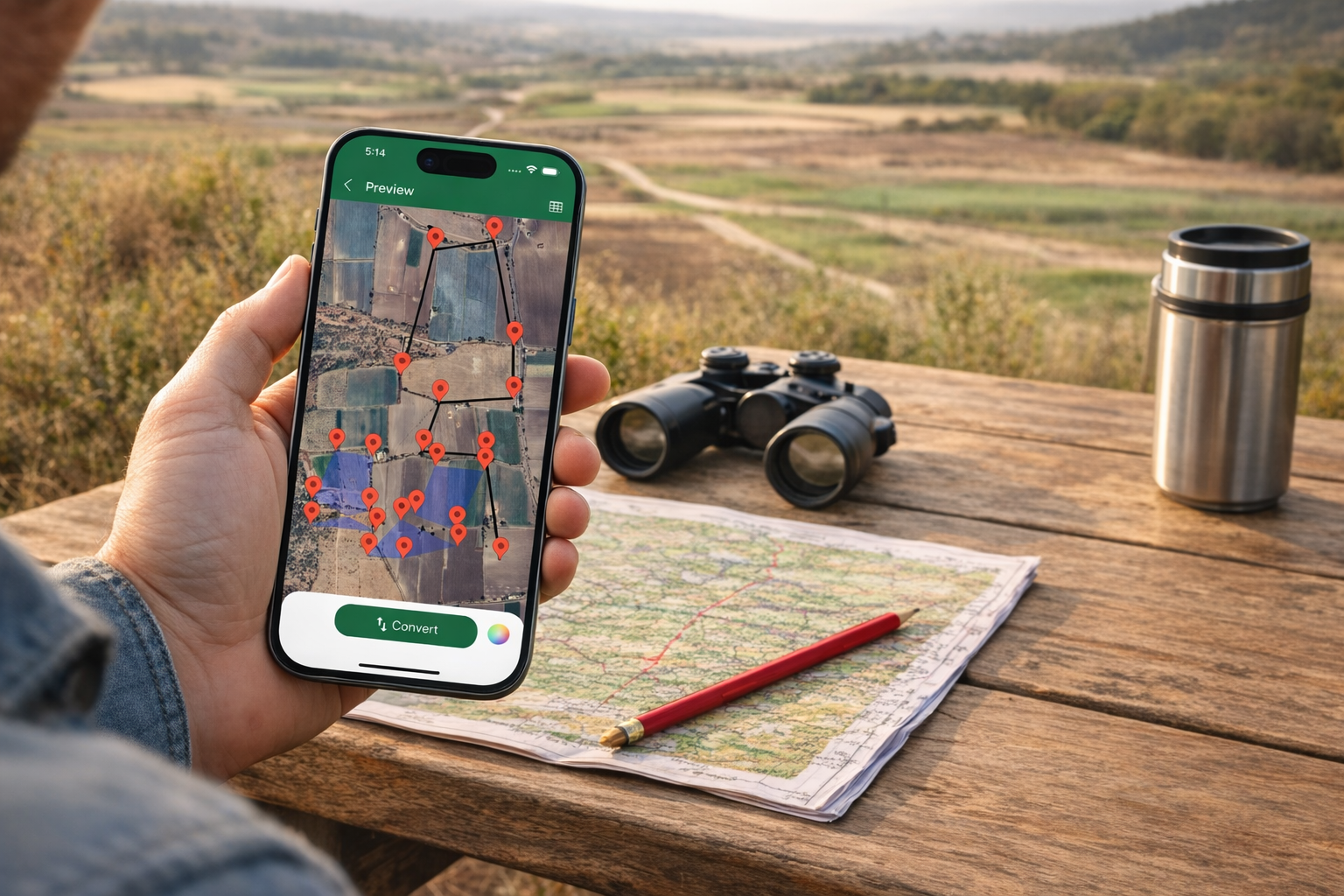
Although managing KML files on your mobile device may seem difficult, there is no reason to worry. The KML Viewer & Converter app is available for your Android and Apple devices to help you open KML files, convert them into other file types, and manage all of your KML files from your smartphone.
This step-by-step guide will help you understand how to open KML files within the KML Viewer & Converter application and convert them into other formats so you can take your maps with you wherever you go.
What is a KML file?
A KML (Keyhole Markup Language) file is a file format that displays geospatial information in mapping software like Google Earth. There are many applications for KML files, including
- Land survey
- Route creation and routing
- GIS projects
- Infrastructure development
- Location-based analysis
KML files store the locations (coordinates), boundaries, and layers of the maps, so having an appropriate application for your mobile device that allows you to view and convert your KML files will be essential.
Why Should You Use the KML Viewer & Converter App?
The KML Viewer & Converter app is designed for quick, accurate, mobile-friendly GIS work. The KML Viewer & Converter app gives you the ability to:
- View KML files on a mobile device
- Convert KML files to a variety of other file types
- Easily share files with others
- Work offline while on location
Because of these reasons, the KML Viewer & Converter app is perfect for professionals who require immediate access to mapping data without needing to carry heavy.
On iOS or Android, Step 1: Install the app
To install the app, please visit the appropriate marketplace and download it.
For Android users:
Search for "Rename KML File" in the Google Play Store to find this app and uninstall it if you no longer want it on your phone.
For iOS Users:
You will need to look for "Rename KML File" in the Apple App Store and, once found, uninstall, if desired.
Once installed, launch the app, provide basic permissions if necessary, and enable storage/location permissions.
Step 2: KML file Import
There are 4 methods by which a user may import a KML file into the application.
- Most users will upload their KML files from their mobile device's file system.
- Many users will receive KML files through email (attachments).
- Cloud Storage (Google Drive, etc.)
- Share the file directly to the app from Windows/File Explorer or macOS/Finder.
Once a file is imported into the app, it will show up in the Files section of the app.
Stage 3: Display KML Files within Mapping Application
Tap any KML file to open it.
You May:
- View Boundaries, Tracks, and Pin placement
- Zoom & Pan
- Change between Initial & satellite imagery and their respective views
- View coordinates and layer names (text)
This feature of the application allows users to have professional mobile KML fieldwork and planning functionality.
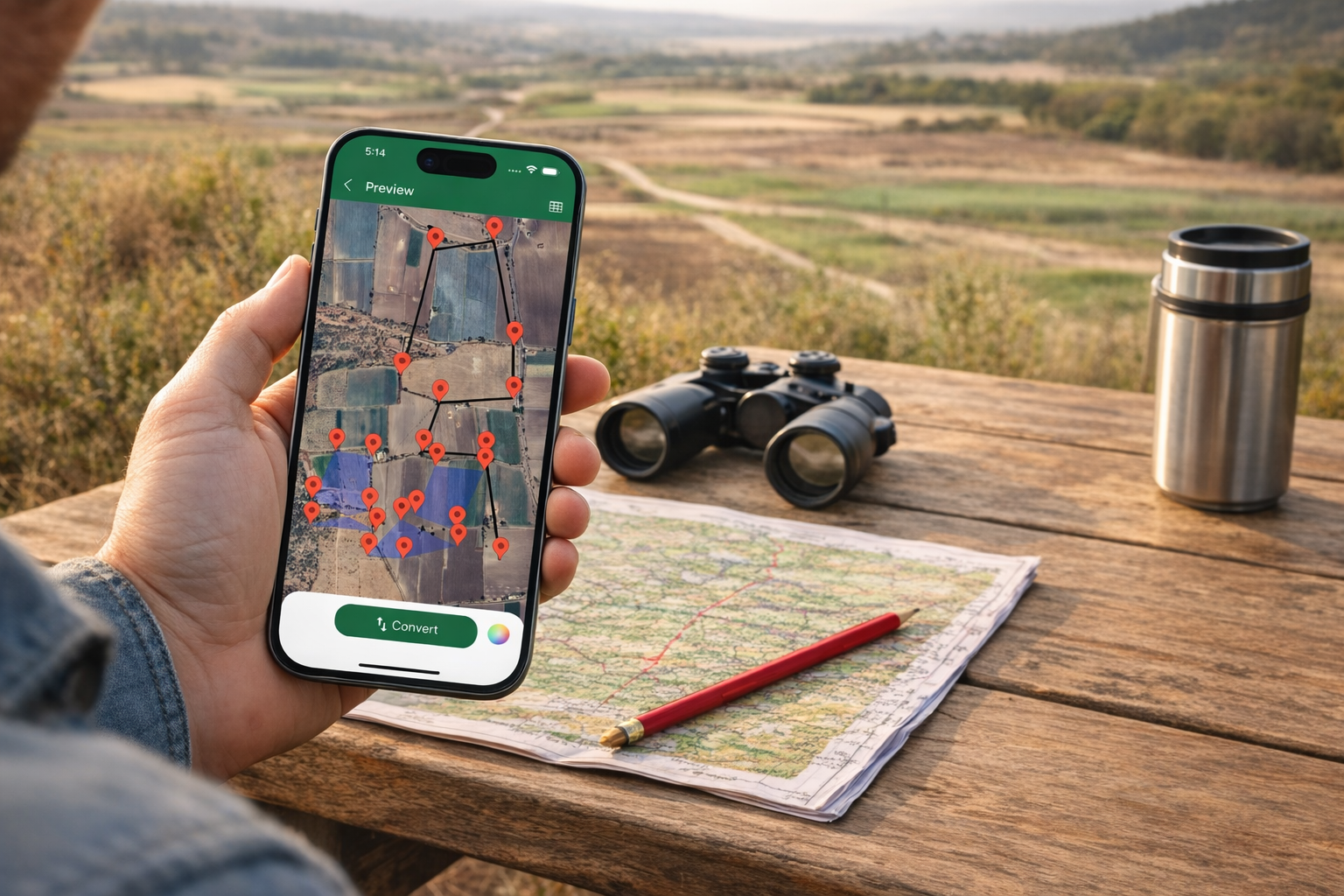
Stage 4: Converting KML Files into Alternative Formats
Another function of the application is file conversion.
You can convert a KML file into other formats, including but not limited to:
- KMZ
- GPX
- GeoJSON
- CSV (depending on how structured the KML file was).
To convert files select the KML file you wish to convert
- Select the desired conversion.
- Select the output format to which you wish to convert your KML file
- Option to Save or share the file you have converted
- This is beneficial when you are using multiple GIS tools/platforms.
Step 5: Share or Export Files
Once you have viewed or converted a file, it is now easy to do any of the following:
- Share the file using WhatsApp, email, or cloud storage.
- Export files to use with GIS software on your computer
- Send files directly to clients or colleagues
The app makes it easy to share files quickly and without any hassle.
Step 6: Use the App Offline (Field Advantage)
For engineers & surveyors who may be working in remote areas, access to KML Viewer & Converter Offline is a huge plus.
- Access previously loaded KML Files while in offline mode.
- Do not need constant internet access
- Great for measuring land and doing inspections.
Who Should Use KML Viewer & Converter?
The KML Viewer and Converter app is designed to be used by:
- Land Surveyors
- Civil Engineering Professionals
- Geographic Information Systems (GIS) Professionals
- Urban Planning Professionals
- GIS Students
- Individuals using KML maps
If you consistently work with geographic KML files, the KML Viewer & Converter can reduce the time you spend on finding, making changes, and sharing KML files.
In conclusion,
The iOS & Android KML Viewer & Converter is a basic but effective app for mobile managing geographic information. With simple-to-use file viewing capabilities, dependable methods of conversion, and offline functionality, it will be an invaluable tool for any current mapping and GIS projects you may have.
If you require a quick, dependable, and mobile-compatible KML viewer/converter, this is the ideal solution.
Posted 2 months ago by