Ultimate Guide to Viewing and Converting KML, KMZ, GPX, GeoJSON & Other Map Files
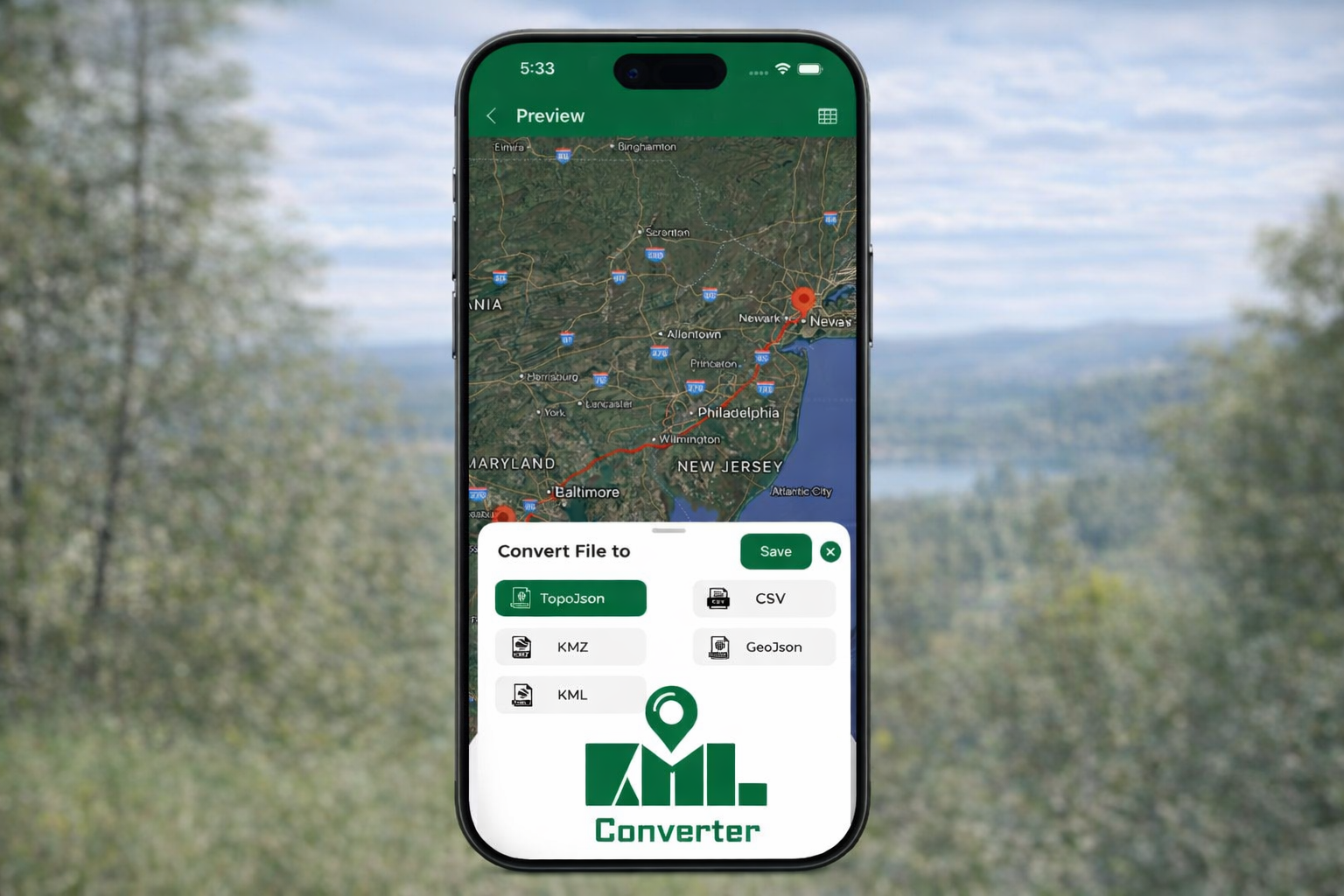
Working with map files can feel confusing if you’re not familiar with geographic data formats. Files like KML, KMZ, GPX, and GeoJSON are widely used in mapping, navigation, GIS systems, and location-based apps, but many people struggle to open or convert them.
This guide explains what these map file formats are, how to view them, and how to convert them easily for use across different devices and platforms.
What Are Map File Formats?
Map file formats store geographic coordinates, routes, boundaries, and location data. These files are used in tools like Google Earth, GPS devices, GIS software, and mapping apps.
Here are the most common ones:
KML (Keyhole Markup Language)
KML is an XML-based format used to display geographic data in mapping tools like Google Earth. It can include:
-
Placemark locations
-
Routes and paths
-
Polygons and regions
-
Custom map styling
KMZ
KMZ is simply a compressed version of a KML file. It may include extra assets like icons or overlays. KMZ files are smaller in size and easier to share.
GPX (GPS Exchange Format)
GPX files are commonly used by GPS devices, fitness trackers, and cycling or hiking apps. They store:
-
Waypoints
-
Tracks (where you’ve traveled)
-
Routes (where you plan to go)
GeoJSON
GeoJSON is a modern format used in web maps and GIS platforms. It’s lightweight, easy for developers to use, and perfect for browser-based mapping tools.
Why You Might Need to View or Convert Map Files
You may need to work with these formats if you:
-
Downloaded a route file for travel or trekking
-
Received a KML or KMZ file via email
-
Want to convert GPS data into another format
-
Need to upload a map file into a different app or system
-
Are working with GIS or location-based projects
The problem? Not all apps support all formats, which makes conversion necessary.
How to View KML, KMZ, GPX, and GeoJSON Files
1. Use a Map Viewer App
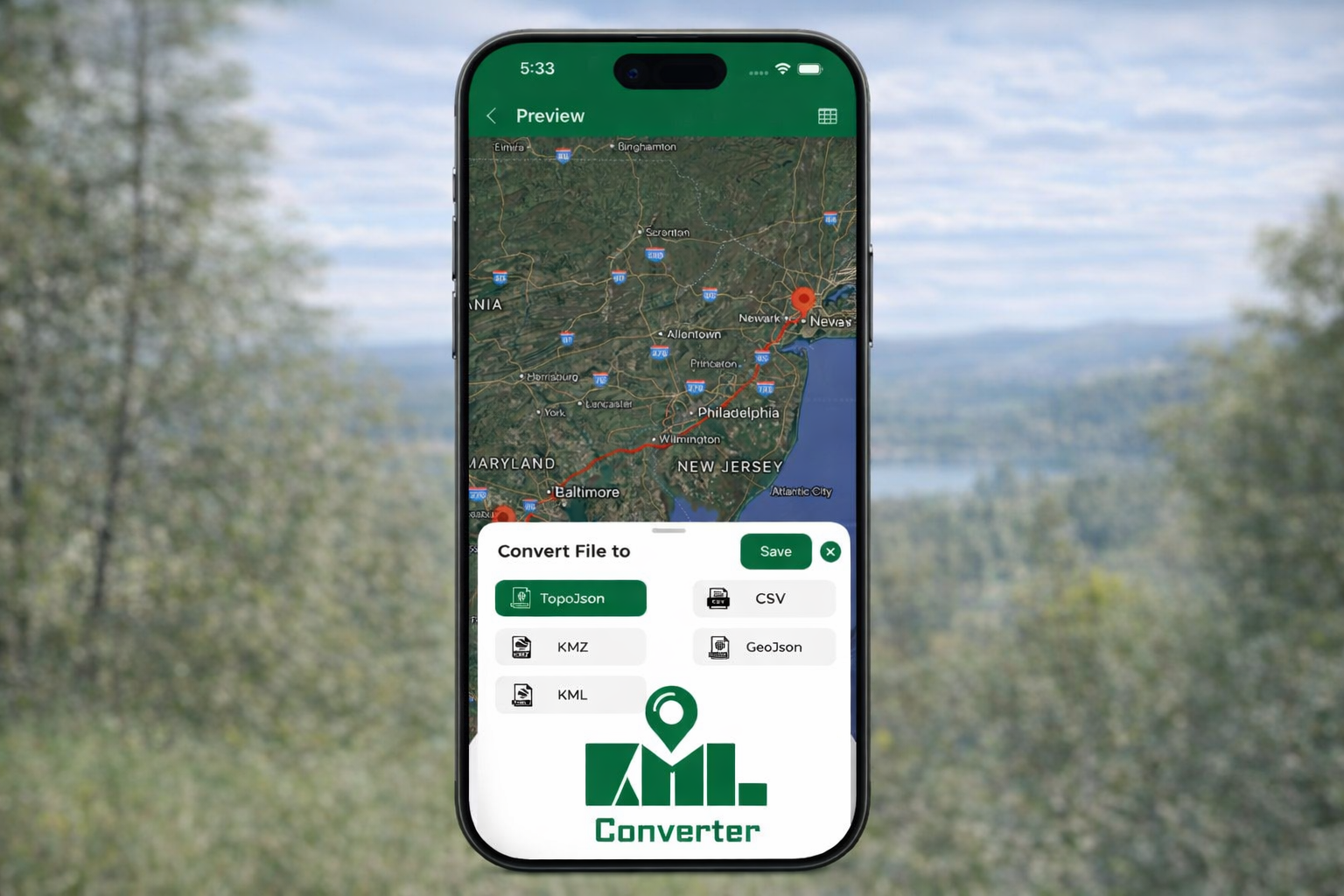
The easiest way to open map files is by using a dedicated map file viewer app on your smartphone or tablet. These apps allow you to:
-
Open multiple formats in one place
-
View routes and markers on an interactive map
-
Zoom, pan, and explore locations
-
Import files from email, cloud storage, or downloads
This is especially helpful for people who don’t use complex GIS software.
2. Open Files in Google Earth
Google Earth is one of the most popular tools for viewing KML and KMZ files.
Steps:
-
Open Google Earth
-
Tap or click Import
-
Select your KML or KMZ file
-
The file will load and display on the map
However, Google Earth does not fully support GPX or GeoJSON, which is where file conversion becomes important.
3. Use GIS Software
Professional tools like QGIS or ArcGIS can open almost all map file types. These tools are powerful but may feel overwhelming for beginners. They are best for:
-
Advanced map editing
-
Data analysis
-
Layer management
Professional GIS projects
How to Convert Map File Formats
Sometimes you need to change a file from one format to another, like KML to GPX for a GPS device or GPX to GeoJSON for a web map.
Here’s how.
Convert KML to GPX
This is common when moving data from Google Earth into a GPS or fitness device.
Why convert?
GPX is better for route navigation and track recording.
How:
-
Open the KML file in a map converter tool
-
Choose GPX as the output format
-
Export and save the converted file
Convert KMZ to KML
Since KMZ is just a zipped KML file, most tools can easily extract it.
Steps:
-
Upload KMZ file
-
Select KML as output
-
Download the uncompressed version
Convert GPX to GeoJSON
Developers often need GPS data in a web-friendly format.
Why convert?
GeoJSON works well in web apps and online maps.
Steps:
-
Upload GPX track file
-
Choose GeoJSON output
-
Use the file in your web mapping platform
Convert GeoJSON to KML
Useful when transferring data into Google Earth.
Steps:
-
Import GeoJSON file
-
Select KML format
-
Download the converted file
Common Problems When Opening Map Files
File Not Opening
This usually happens because the app doesn’t support that format. Solution: Use a multi-format map viewer.
Map Loads But Shows Nothing
The file may contain coordinates outside the current map view. Try zooming out or searching the location.
File Too Large
Some apps struggle with large GIS files. Convert to a lighter format like GeoJSON or split the file.
Wrong Format for Device
GPS units often only accept GPX. Convert before transferring.
Best Way to Manage Map Files on Mobile
Today, many people prefer handling map files directly on their Android or iPhone instead of using a computer. A mobile map file viewer and converter allows you to:
-
Open files from WhatsApp, email, or Drive
-
View routes instantly on a live map
-
Convert between KML, KMZ, GPX, and GeoJSON
-
Share converted files easily
This is perfect for travelers, surveyors, delivery teams, outdoor explorers, and GIS learners.
FAQs About Map File Conversion
What is the difference between KML and KMZ?
KMZ is just a zipped version of KML. It may include extra images or overlays and has a smaller file size.
Can I open a GPX file in Google Earth?
Not directly. You usually need to convert GPX to KML first.
Which format is best for GPS devices?
GPX is the standard format for most GPS and navigation devices.
Which format is best for web maps?
GeoJSON is widely used for online and browser-based maps.
Is it safe to convert map files?
Yes, as long as you use a trusted map viewer or converter tool.
Final Thoughts
Understanding how to view and convert KML, KMZ, GPX, and GeoJSON files makes working with location data much easier. Whether you’re planning a trek, analyzing routes, building a map-based app, or sharing geographic data, using the right format is essential.
With the help of modern viewer and converter tools, you no longer need advanced GIS knowledge. You can open, explore, and transform map files in just a few taps saving time and avoiding compatibility headaches.
Posted 2 months ago by