How to Convert KML Files to GPX, CSV & GeoJSON Online
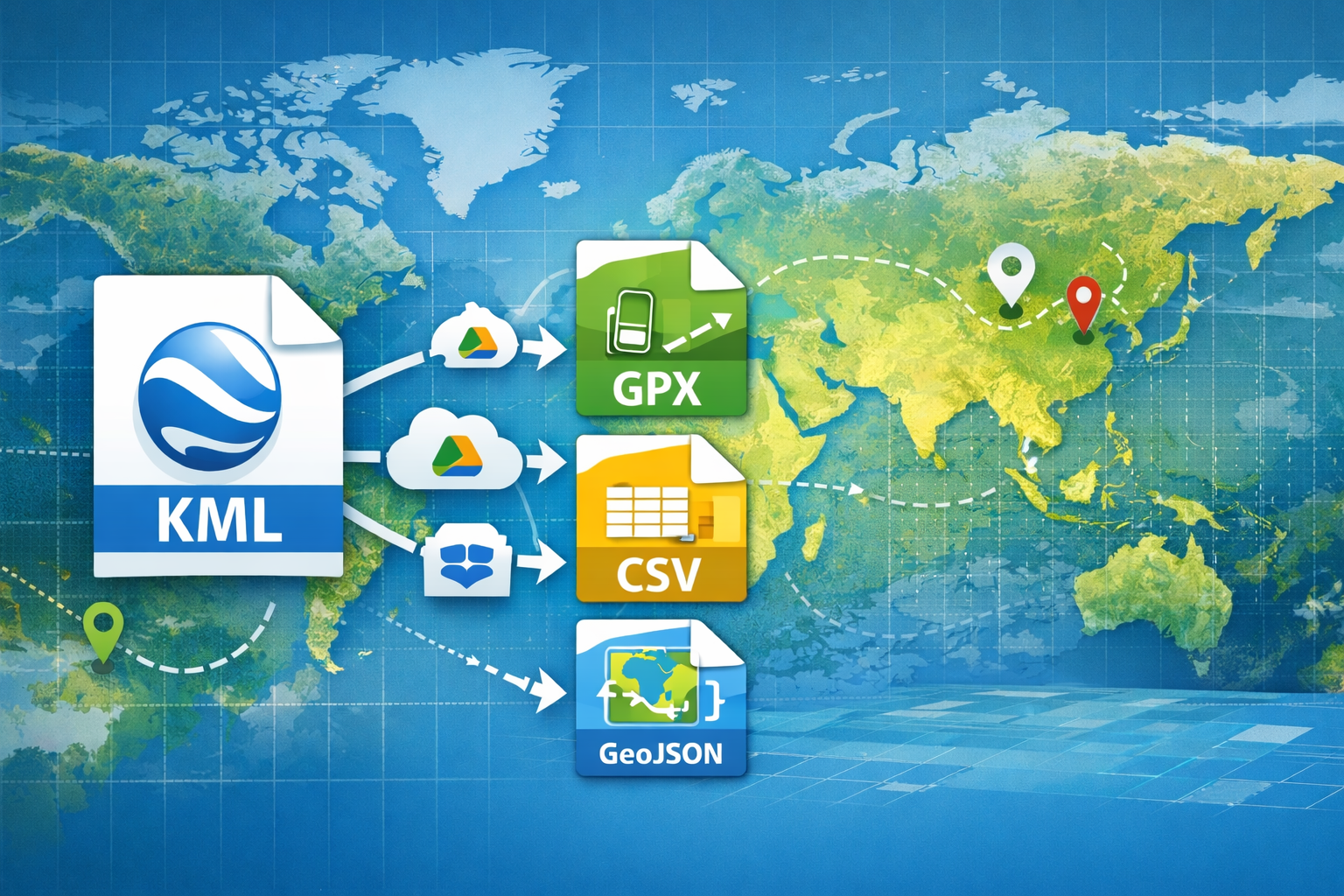
Geospatial data is a major factor in the way we navigate the globe today. Urban planners and outdoor adventurers alike rely on geospatial data for their respective endeavors. KML (Keyhole Markup Language) is the leading format for sharing this type of data via Google Earth, but it's not the only one. There are other tools available to assist you with this task, and they may also be used with other devices than the ones you currently use.
You should be confident that using an appropriate free KML converter to quickly and easily convert KML files into GPX, CSV, and GeoJSON formats.
1. The Importance of KML Conversion for Users?
Different Platforms Require Different 'Languages' to Interpret Geographic Information. KML Conversion Will Provide You with New Options:
-
KML to GPX (GPS Exchange Format): The most common format for outdoor adventurers. GPX is compatible with Garmin handhelds, Strava, and the various hiking apps such as AllTrails.
- KML to CSV (Comma-Separated Values): The best option for data analysts. Converting KML to CSV allows you to import your coordinates, names, and descriptions directly into either MS Excel or Google Sheets.
- KML to GeoJSON (lightweight JSON format): The best choice for web developers. GeoJSON acts as a data format for web mapping using JavaScript mapping libraries such as Leaflet and Mapbox.
2. Online KML Converters (Step-by-Step)
Using one of the online KML converters offered by BMAC Infotech or GeoMeasure is a better method than having GIS software installed on your device.
Step 1: Upload Your File
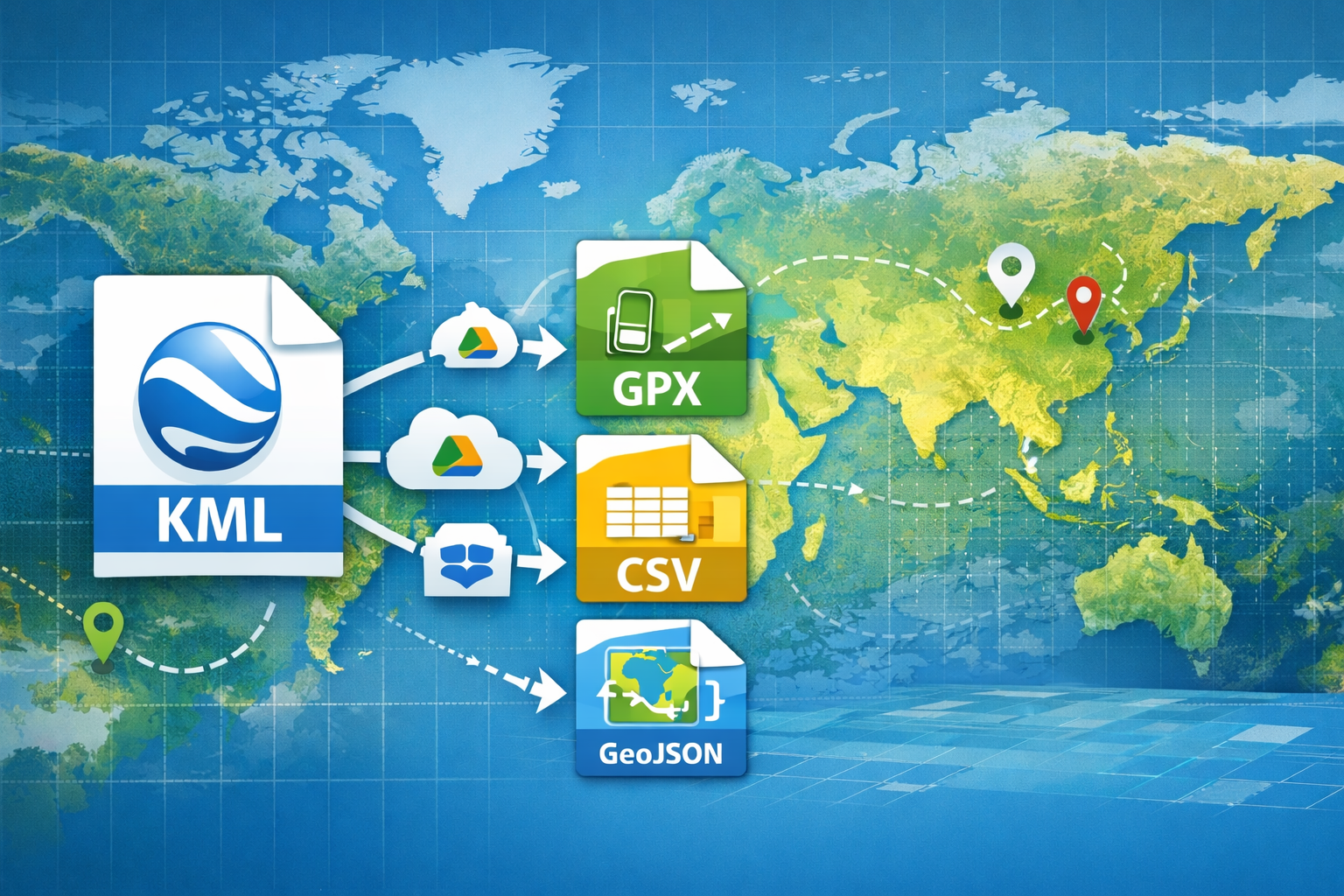
Open your preferred online KML converter tool. With most of these online tools, you can simply drag and drop your. KML or .KMZ (Compressed KML) files into the online tool from your browser or upload them from Google Drive or Dropbox.
Step 2: Choose What Format You Would Like to Convert Your KML File Into
Choose which format is compatible with your requirements:
- If you are planning a hiking excursion, choose the GPX format.
- If you are conducting a land survey or auditing information, select CSV.
- If you are developing a GIS project for website use, select GeoJSON.
Step 3: Convert and Download Your Converted File
After you complete the above steps, click on the "Convert" button. Once the process is complete, your KML file will be converted from XML tags into your selected file format, and you can download the file to your device once it has been converted.
3. Comparison of Formats
| Format | Best Use Case | Compatible Software |
| KML | Visualization & 3D Maps | Google Earth, ArcGIS Earth |
| GPX | Navigation & Fitness | Garmin, Strava, Komoot |
| CSV | Data Analysis & Reports | Excel, Google Sheets, SQL |
| GeoJSON | Web & App Development | Leaflet, Mapbox, QGIS |
4. Pro tips to make sure your data gets converted well
- KMZ vs KML: A KML file will be a zipped KMZ file, so before trying any online converter, be sure to unzip the KMZ file.
- Coordinates: Be sure to convert your KML file to the WGS84 format (latitude/longitude), which is what most GPX and GeoJSON readers will use.
- Data Cleaning: If your CSV file appears to be unorganized, you might want to find a tool that can take your "PlaceMark" names and "Coordinates" and separate them into two columns for better clarity.
To summarize: Geospatial flexibility at your fingertips.
Using a KML converter is not a technical barrier; many cost-free KML converters exist to provide a bridge between the world of Google Earth and many other types of digital media. The steps above will help ensure your mapping data is always formatted for whatever reason you use it, whether you are an app developer, surveyor, hiker, or otherwise.


Posted 2 months ago by